The subtitle guide / Desktop Chrome
Picture-in-picture.
Keep the subtitles, too.
A floating video is more useful when you can follow the words. Here's how to use SuperPiP's subtitle integrations, and what to check when captions don't appear.
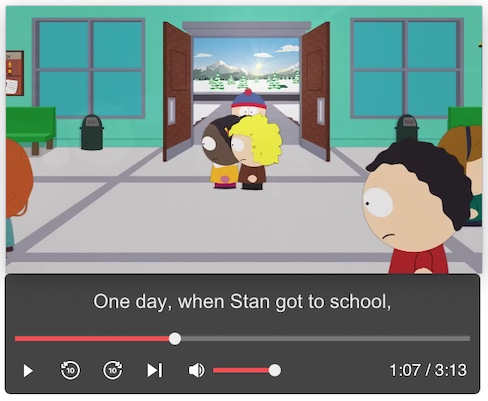
Turn captions on before opening PiP.
Subtitles come from the original video service. SuperPiP can bring supported caption text into its floating window, but it cannot display a subtitle track that the service does not provide. Start by checking that the video has captions and that they are visible in the original player.
- Install SuperPiP for Chrome and pin it in the Extensions menu.
- Refresh the video page if it was open before you installed the extension.
- Start playback. In the original player, choose your subtitle language and enable captions.
- Click the SuperPiP toolbar icon or use Alt + P to open the floating player.
- Leave the original tab open. Move or resize the PiP window while you work in another tab or application.
Which services have subtitle integrations?
The Chrome extension includes integrations for YouTube, Netflix, Disney+ and Prime Video. On YouTube, first use the player's CC/subtitle control. On Netflix, choose an available subtitle track in the original player's audio/subtitle menu before opening SuperPiP.
These integrations depend on how the site renders its captions. A service update, a different player, or a browser edition can change the result. Disney+ and Prime Video caption behavior also depends on their current players. Check the original video first rather than assuming a missing subtitle is a PiP setting.
Why can a video float without its captions?
A service may render captions separately from its video. A video appearing in a floating window does not, by itself, prove that the player's caption text will appear there. SuperPiP uses service-specific caption integrations; those can stop working when the service changes its page.
If captions are visible in the original player but missing in SuperPiP, close PiP and reopen it after enabling captions. If that does not help, refresh the video page and check the extension's site access. Follow the caption troubleshooting checklist before reporting the browser, service and steps that reproduce the problem.
What this does and doesn't do.
SuperPiP is a floating player with controls and supported subtitle display. It does not generate new captions, translate them, or unlock restricted content. Keep your normal service access and the original tab open. For browser editions other than Chrome, check the official download listing for their current capabilities.