Keep the video in view.
Move a floating picture-in-picture window alongside your notes, work or another tab. Keep the original video tab open.
SuperPiP / Desktop browser extension
Your video stays in view. Playback controls stay within reach. And on supported players, your subtitles come along too.
For desktop Chrome · Edge & Safari listings
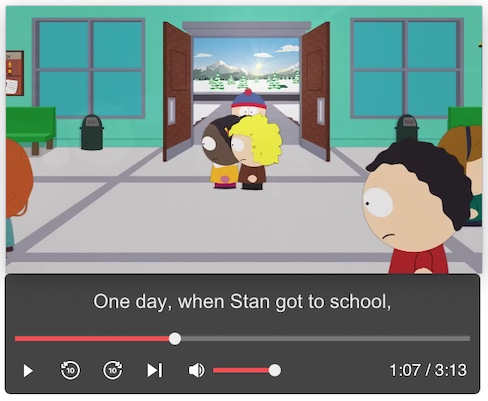
A better little window
Move a floating picture-in-picture window alongside your notes, work or another tab. Keep the original video tab open.
Pause, seek, change volume or adjust playback speed from the SuperPiP window. Available controls depend on the player.
Explore playback controls →Turn captions on in the original player first. SuperPiP can display them in the floating window on supported services.
Read the subtitle guide →Install from the official store and pin the extension for easy access. Refresh video tabs that were open before installation.
If you want subtitles, enable them in the original video player before opening SuperPiP.
Use the toolbar icon or Alt + P in Chrome. Leave the source tab open and move the floating window where it suits you.
Before you press play
No. Subtitle support depends on the browser, video player and how the service renders its captions. SuperPiP includes integrations for YouTube, Netflix, Disney+ and Prime Video, but site updates can affect them. See caption troubleshooting.
SuperPiP adds its own playback controls and supported subtitle integrations. Built-in picture-in-picture controls vary by browser and website. Compare the workflows.
Keep it open: the video and its captions still come from that page. You can browse another tab or work in another window while it plays.
This site's setup instructions are for desktop browsers. Mobile Chrome does not install desktop Chrome extensions. Check each official store listing for supported devices and system requirements.
Make a little space
Start with SuperPiP for desktop Chrome.