The SuperPiP toolkit
A floating player.
More of what you need.
Picture-in-picture with playback controls and subtitle integrations, designed around desktop viewing.
Add to Chrome01 / Your own corner
Keep the video
alongside your day.
Open a floating video window, move it around your screen and resize it to fit your workspace. SuperPiP remembers the window size for the next opening.
The original tab supplies the video, so keep that tab open. The browser controls the window frame and positioning behavior.

02 / Fewer tab switches
Playback controls,
right where you watch.
Play or pause, seek forward and backward, adjust or mute the volume, and change playback speed from the floating window. Player restrictions may affect individual controls.
Keyboard shortcuts keep common actions close. The next-video control is YouTube-specific and depends on its next button being available.
Controls & keyboard shortcuts →
03 / Don't lose the words
Subtitles can
come with you.
Enable captions in the original player. SuperPiP's integrations can bring the displayed text into the floating window on supported players, including YouTube and Netflix.
Disney+ and Prime Video integrations are also included. Availability depends on the player and browser; service changes can interrupt captions. SuperPiP does not create or translate subtitles.
Set up picture-in-picture subtitles →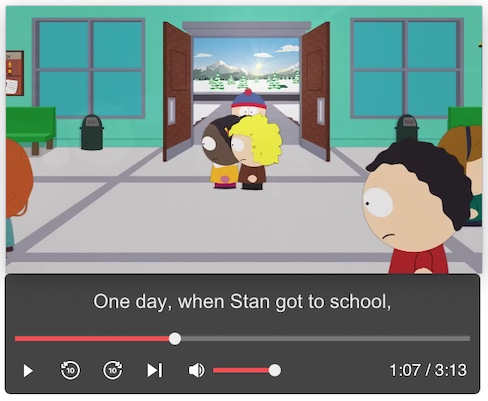
Make a little space
Keep watching.
Keep doing your thing.
Start with SuperPiP for desktop Chrome.